debian cheat sheet
For my friends who I've recommended Debian + GNOME to.
The Terminal
It's not mandatory, but by not using it you are putting yourself at a huge disadvantage and limiting your learning / understanding of Linux.
- There is tab-autocomplete so you never have to remember command options
- There are manuals for every command
- There is AI that can explain any command to you
- There is this beginners guide I wrote to show you the basics
We do a little bit of learning, its called we do a little bit of learning.
Sudo
"Super User Do" basically means
admin.
So when a command starts with sudo that means you're running it as admin. (in *nix we refer to the admin account as root)
Installing software
Native package manager - apt
# ALWAYS do this first
# Your system stores a list of programs from the software repository. This command updates that list to reference newest versions of software
sudo apt update

# Upgrade to new versions of software
sudo apt upgrade

# search for a package, by name
sudo apt search <name-here>

# install a package
sudo apt install <name-here>

# If you keep your computer on all the time, this could be useful to auto update/upgrade your debian native apt packages
sudo apt install unattended-upgrades
sudo dpkg-reconfigure unattended-upgrades
.deb file
Debian package file
# You can apt install a `.deb` file directly
sudo apt install /path/to/package.deb
AppImages
These are distribution-agnostic programs. You can run them on any Linux system.
# Make the program executable
chmod +x ./Obsidian.AppImage

# Execute the program
./Obsidian.AppImage
Flatpak
https://flathub.org/en/setup/Debian
I only recommend using Flatpak for OBS and maybe Steam.
# Install flatpak
sudo apt install flatpak

# Enable flathub (the flatpak software repository)
flatpak remote-add --if-not-exists flathub https://dl.flathub.org/repo/flathub.flatpakrepo

# Install OBS-Studio
flatpak install com.obsproject.Studio

# Install Steam
flatpak install com.valvesoftware.Steam

# Updating flatpaks (updates are not automatic and not tied to apt)
flatpak update

# BONUS - you can download flatpaks from GNOME Software Center too
# (it never worked for me - YMMV)
sudo apt install gnome-software-plugin-flatpak
.desktop files
AppImages and Flatpaks may not show up as launchable programs when you press
Super(windows key) . Do the following to fix that.
AppImage
# Make the appropriate directory, if it doesnt exist
mkdir ~/.local/share/applications

# Create a .desktop file for whatever app
touch ~/.local/share/applications/YourFavoriteApp.desktop
Put this in the
.desktopfile:
# e.g. ~/.local/share/applications/conversejs.desktop

# Change this file as needed for whatever program you are setting up

[Desktop Entry]
# Basic Info
Name=ConverseJS
Exec=/home/billy/applications/converse/converse_desktop-12.0.0_x86_64.AppImage
Icon=/home/billy/applications/converse/converse-desktop.svg
# Not required, but not all .desktop files are application launchers
Type=Application
# Whether the program runs in a terminal window.
Terminal=false
# Which menu category displays the menu entry (start menu or w/e)
Categories=Chat;XMPP;
Keywords=chat;xmpp;
Flatpak
echo $XDG_DATA_DIRS
This command will give you a colon-separated list of directories.
These directories are what app launchers look in to find programs to run
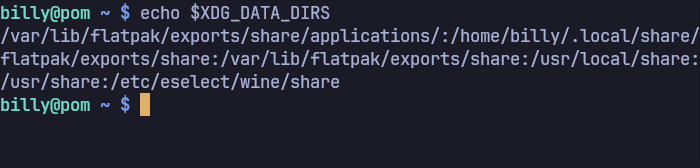
# On my system, these are the directories in my `XDG_DATA_DIRS` env var:

/var/lib/flatpak/exports/share/applications/
/home/billy/.local/share/flatpak/exports/share
/var/lib/flatpak/exports/share
/usr/local/share
/usr/share
/etc/eselect/wine/share
I did not have the flatpak directories originally, so I include them at logon time using the
.bashrcfile.
# Run this command to add the flatpak directory to your ~/.bashrc file
echo 'export XDG_DATA_DIRS="/var/lib/flatpak/exports/share/applications/:$XDG_DATA_DIRS"' >> ~/.bashrc

# ~/.bashrc is a special file that executes when you log on
WINE
If there is some windows-only program that you cannot live without, try running it with wine.
I HIGHLY recommend reading the Debian Wiki to learn about installing Wine.
# Install wine
sudo apt install wine

# Run the program
wine MyProgram.exe
The first time you run
wineit creates a Windows-like structure under your home folder.
billy@pom ~ $ tree ~/.wine -L 2
/home/billy/.wine
├── dosdevices
├── drive_c
│   ├── ProgramData
│   ├── Program Files
│   ├── Program Files (x86)
│   ├── users
│   └── windows
├── system.reg
├── userdef.reg
└── user.reg
If you messed something up in wine or want to start fresh, simply delete the
.winefolder
rm -r ~/.wine

# i sometimes do this with sudo as well, to avoid warnings and such
You can also have different wine environments to keep things separate if needed.
# expliticly set the wine prefix
WINEPREFIX=/home/billy/.wine2 wine MyProgram.exe
WINEPREFIXis just a special variable thatwineuses to know where the wine folder is. It's implicitly set to~/.winewhen not specified.